Official download from MacPlus Software · Version 1.9.1
Requires macOS 10.13 (macOS High Sierra) or later. macOS 14.0 (Sonoma) and Intel and Apple Silicon (M1-M4) fully supported
It takes a lot of time, clicking the mouse (or a touchpad) and nerves, you need to be precise and skillful to arrange the windows on Mac. MaxSnap will help you control the window size and location effectively and with minimum efforts.
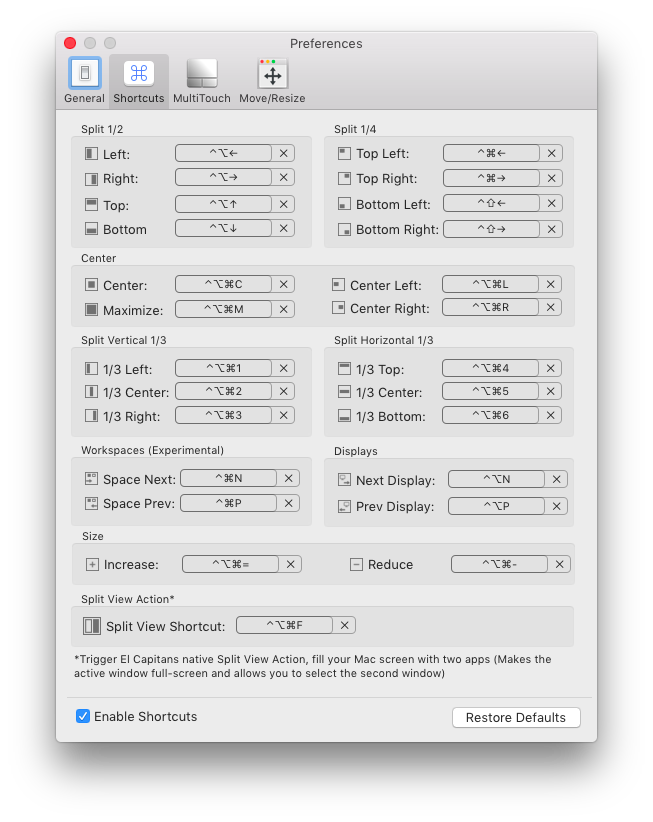
Many predefined layouts
MaxSnap included some predefined actions to change the window size and/or location into various and sizes.
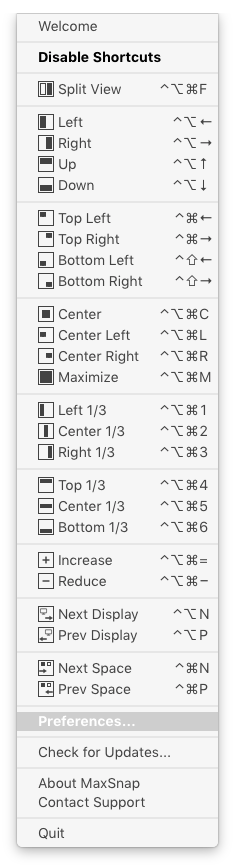
Control the windows with keyboard or an icon in menu bar
If you prefer doing everything with a keyboard, there is an option to use hotkeys (you may set the combinations yourself as well).
You don’t feel like memorizing the hotkeys, then use a convenient menu by clicking the icon in Menu bar.
Alt-Drag – Re-arrange windows fast and painless
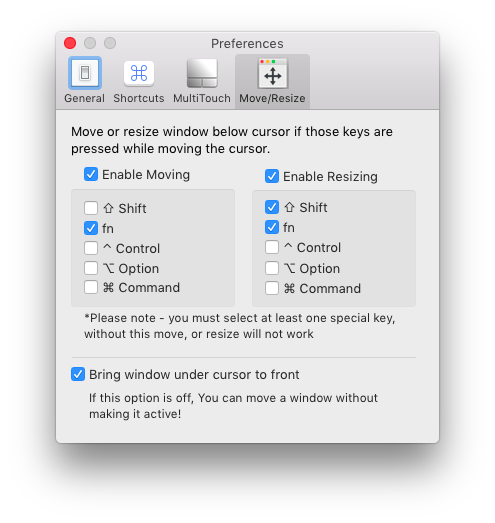
Typically, in macOS, you use the window title to move and the lower right corner to resize the window.
MaxSnap allows you to re-arrange windows by using its entire surface: click fn or Fn+Shift and start changing window size or location.
Those who used Linux before probably remember Alt-Drag function.
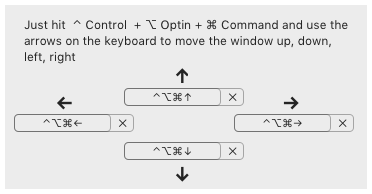
Arrange windows with arrow keys
Do you prefer to use keyboard? Would you like to precisely position the windows? Just click Ctrl+Option+Command and use arrow keys to arrange the windows
Multitouch gestures
Use the usual swipe (from left to right, from right to left, and from the bottom to the top to quickly arrange and change window size.
Simply click fn+Command (you can set it up, swipe from right to left to position all the windows on the left side and make window size equal to half of the screen)
Spaces and external display support
You can easily movehe window to other working space or display.